 Night Screen - Darker Display
How to make Safari websites dark on iPhone and iPad
To darken bright websites in Safari, enable the Night Screen extension in Settings, allow website access, then open Night Screen from Safari’s page menu. Choose dark pages, natural, warm or red colors, and extra dimming. This changes website appearance; it does not change the whole display.
Why a website can stay bright in Dark Mode
iOS Dark Mode changes the system interface and apps that support it. A website controls its own page colors, so some pages stay white. Check for the website’s own dark theme first. Night Screen’s Safari extension can restyle bright pages when you want more control.
Enable the Safari extension
- Install Night Screen on your iPhone or iPad and open the app. Safari night mode requires an active trial or subscription. It does not require Apple Shortcuts.
- Open Settings → Apps → Safari → Extensions. On iOS 17, open Settings → Safari → Extensions instead. Select Night Screen.
- Turn on Allow Extension, then set All Websites to Allow. Safari controls website permissions; you can change them later.
- Open a website in Safari. Open the page menu in the address bar and choose Night Screen.
Menu placement can vary with the iOS version. See Apple’s guide to Safari extensions for permission and extension controls.
Choose colors and dimming
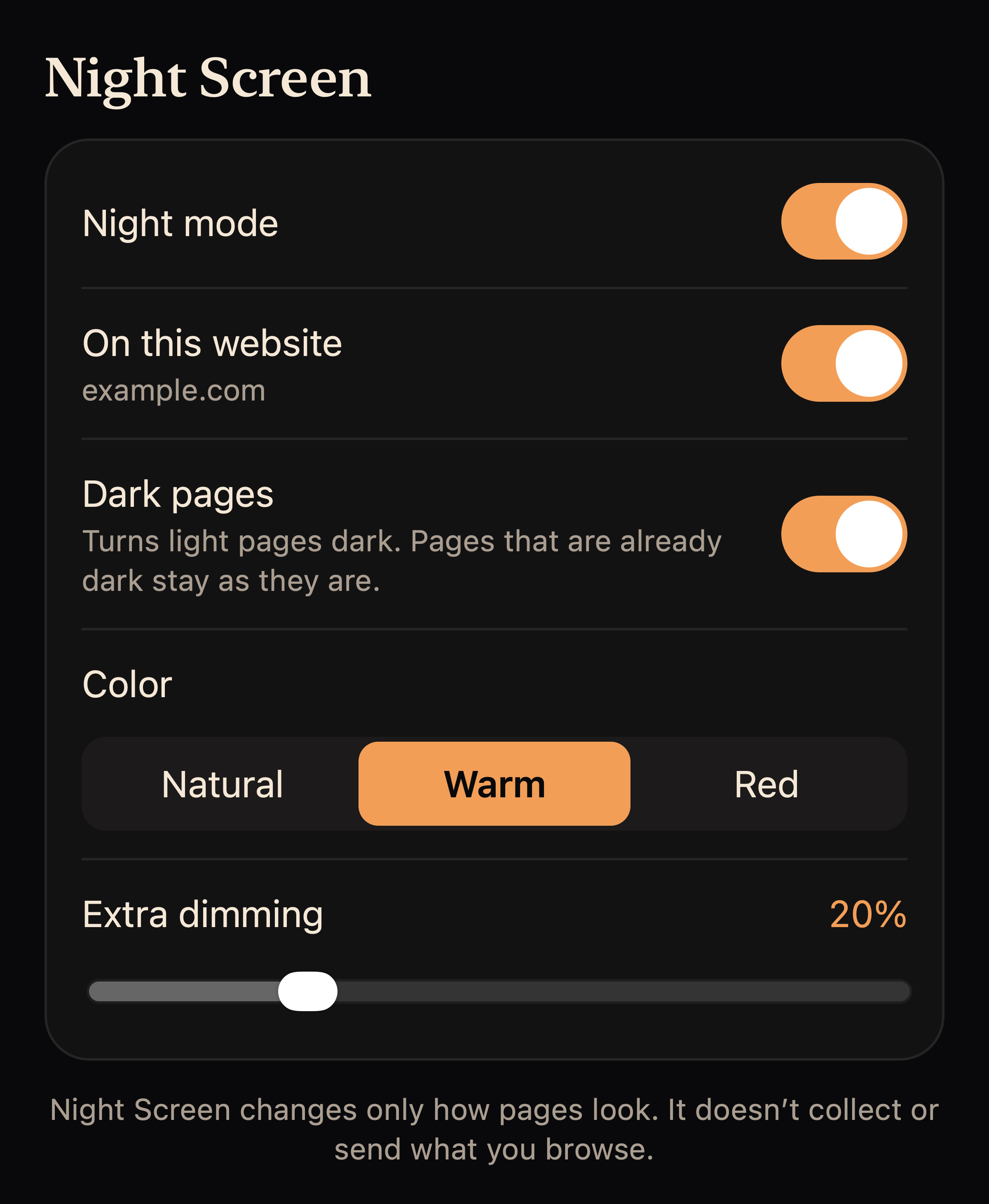
Turn on Night mode in the extension panel. Dark pages changes bright page backgrounds. Choose Natural, Warm or Red, then adjust Extra dimming while keeping text readable. The extension avoids brightening websites it identifies as already dark.
These Safari color options are separate from the whole-phone Midnight and Red Tint modes. Safari’s red appearance does not require setting up Color Tint in iPhone Settings, and it does not recolor other apps. For a red display across apps, use the Red Tint setup guide.
Turn it off for one website or everywhere
Open the extension panel on a website and turn off This website to exclude that site. Turn off Night mode to disable the extension’s effects everywhere. You can also disable the extension in Safari’s extension settings.
If a page looks wrong or the controls are unavailable
Some websites may not display well with extra styling. Try Natural colors, reduce dimming, or turn the effect off for that site. Safari’s own start page and other protected pages may not allow extensions. Check website permissions if the extension is unavailable.
If the panel asks for membership, open Night Screen to start an eligible trial or restore purchases, then return to the extension and tap Check again. For more help, visit support.
Website access and privacy
The extension checks page colors locally to adjust appearance. It does not send page contents or browsing history to us. Your extension settings and excluded website names stay in Safari’s extension storage on your device. Read the privacy policy.
Safari only, or every app?
Use the extension when the problem is a bright website. For display changes while reading or scrolling in other apps, use Midnight or Red Tint after Shortcuts setup. The iPhone blue light filter guide compares the options and their requirements.
Does this schedule the whole-phone modes?
Night Screen currently does not include automatic scheduling for Midnight or Red Tint. You turn these modes on and off from the app after setup. Apple’s Night Shift has its own separate scheduling controls.